- Lightroom Presets
- Best Sellers
- Mobile Presets
-
Photoshop
-
Learn
-
Support
-
Install
- Blog


Last Updated: October 27, 2026
Quick Summary
Beginner portrait editing in Lightroom follows a repeatable top-to-bottom order: crop and straighten, fix exposure, set white balance, balance highlights and shadows, refine contrast, then adjust color. Work through the Basic panel in that sequence so each step builds on the last. Use Vibrance rather than Saturation to protect skin tones.
Portrait editing starts long before you touch a slider. The best edit begins with the right photo. A sharp, well-exposed image needs small corrections.
Pick a portrait where the eyes are in focus and the face is well lit.
Skip the temptation to fix a soft, out-of-focus shot in post. No slider brings back detail that was never captured.
Lightroom comes in two main forms, and they behave differently.
Know which one you have before you follow any steps. The sliders are similar, but the tools are not identical.
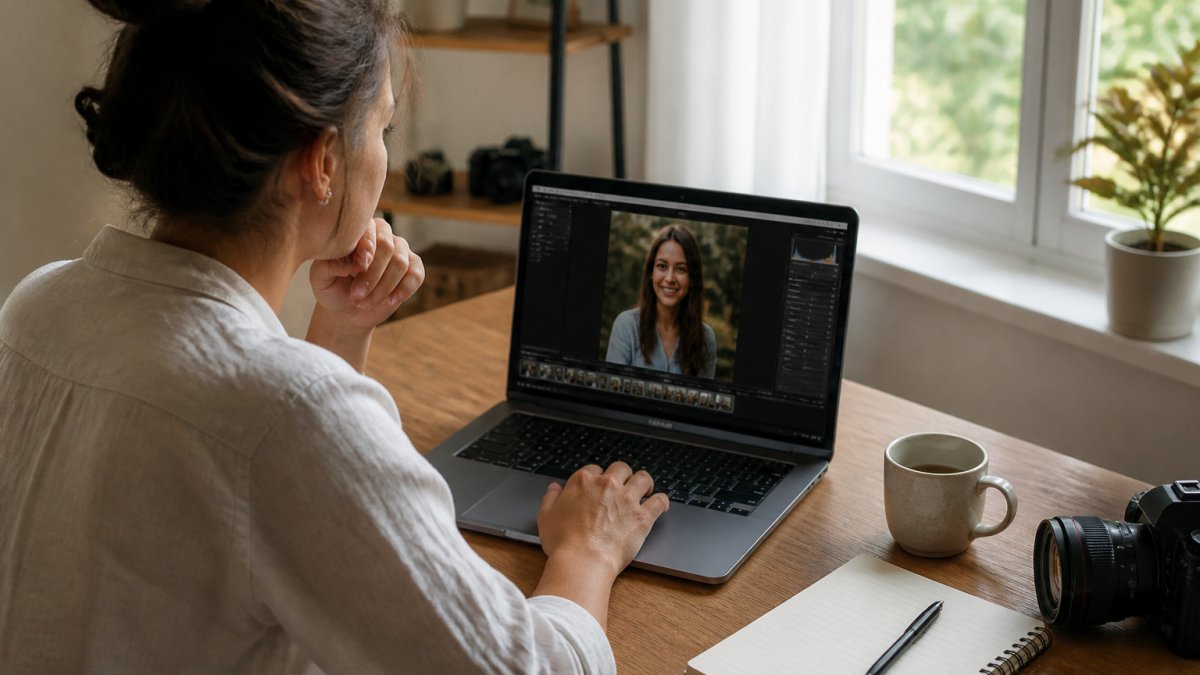
Here is a repeatable order to try. Work top to bottom in the Basic panel. Each step builds on the one before it, fixing exposure before color saves you from redoing work, and setting white balance before saturation keeps you from chasing color casts.
Below is what each step actually looks like, with the reasoning so you can adapt it to any portrait instead of copying one set of numbers.
Open the Crop tool (press R in Lightroom Classic). Trim distractions at the edges and straighten any tilt with the Straighten tool or Angle slider. For portraits, keep the eyes near the upper third of the frame and leave breathing room above the head, cropping too tight feels cramped. Thoughtful composition ensures that when you move toward displaying your portraits on acrylic prints, the subject remains the clear focal point of the final presentation.
Use the Exposure slider to get overall brightness right, then check the histogram in the top-right corner. You want data spread across the middle, not piled against either edge, touching the far right means clipped highlights, the far left means crushed shadows.
A common pattern is to underexpose slightly when shooting to protect highlights, then lift Exposure here. If the whole image is too dark, raise Exposure in small increments and watch the face, not the background.
If skin looks too orange, drag Temperature toward blue; if too blue, nudge it warmer. Tint corrects green or magenta casts, useful under fluorescent or mixed indoor light. Getting skin tones right here saves hours later.
If you shot a gray card or have a neutral reference in the frame, use the White Balance Selector (the eyedropper) and click it.
Pull down Highlights to recover detail in bright areas like a white shirt or sunny forehead, and raise Shadows to open dark hair or a shadowed jawline. Work in moderation, too much Shadows creates a flat, noisy look, and too much Highlights can make skin look gray.
Adjust Whites and Blacks to set your true bright and dark points; hold Alt/Option while dragging in Lightroom Classic to see where clipping begins. Add a little Contrast to give the face shape, but only after exposure and white balance, or you will compound mistakes.
Use Vibrance more than Saturation. Vibrance protects skin tones while boosting the rest of the image; Saturation pushes everything, including skin, and is the fastest way to orange, unnatural faces. If skin tones still look off, our guide on how to get beautiful skin tones in Lightroom walks through the exact tools.
A single slider recipe will not fit every portrait. Here is how the workflow shifts:
Natural portraits share a few traits: soft skin, real texture, and colors that match what you saw.
Perfect Portrait: Retouch & Makeup Brushes for Lightroom →
The goal is a portrait that still looks like a person. For a softer, film-style finish, our tutorial on editing photos to look like film in Lightroom Mobile shows how to get that look without extra gear.
The biggest beginner mistake is over-smoothing. Slide Texture and Clarity too far and skin turns to wax. The fix is not a magic number, it is masking the skin only and leaving eyes, hair, and lips sharp.
In Lightroom Classic and the cloud version, open the Masking panel (the circle-with-dashes icon) and choose Select People.
If Select People misses (common with profiles, hats, or unusual angles), fall back to Select Subject or a manual Brush mask. Refine edges with Add and Subtract so the mask stops at the jawline and hairline.
Once the skin mask is active:
A useful check: toggle the mask overlay on and off. If the difference is obvious at a glance, you have gone too far. The goal is skin that still looks like skin.
For portrait retouching, Perfect Portrait retouch and makeup brushes for Lightroom includes 40 brushes for skin, eyes, teeth, and color casts. The brushes are compatible with Lightroom 5, Lightroom 6, and Lightroom Classic, and do not work in the Lightroom CC mobile app. The AI Portrait Pro collection on our website uses Lightroom's AI masking technology to adjust skin, eyes, teeth, hair, and backgrounds.

Our amazing presets are available at www.lightroompresets.com.
Editing on your phone works well once you know the layout. Open your photo, tap the Edit icon, and you will see the same core sliders: Light, Color, Effects, and Detail.
A simple mobile workflow:
If you edit on the go, browse the Lightroom Mobile collection for mobile-friendly tools.
A preset can be a starting point; you can fine-tune it to match your photo.
Our AI Portrait presets use Lightroom's AI masking technology to adjust skin, eyes, teeth, hair, and backgrounds.

A common mistake is stacking presets without checking skin.
| Preset Type | Best For | Works In |
|---|---|---|
| AI Portrait presets | Fast, targeted retouching | Lightroom Classic and cloud |
| Retouch brushes | Precise skin and eye work | Lightroom Classic |
| Light & Airy presets | Bright, soft portrait style | Desktop and mobile |
Browse the full range of Pretty Presets to find a look that fits your work.
Work in small amounts and zoom in to 100% before judging skin. Apply light Texture reduction rather than heavy Clarity or smoothing. Keep skin texture visible: if pores disappear, you have gone too far. A natural-looking edit usually means several small moves, not one big slider push.
There is no single preset of numbers, but a starting point is: correct white balance first, set exposure so skin sits mid-bright, pull Highlights down to recover detail, lift Shadows gently, and add a little Contrast. Keep Texture and Clarity low on skin and use them on eyes and hair instead. Then adjust Vibrance rather than Saturation. Save these as a preset.
Yes. Pretty Presets collections are fully customizable, so you can adjust them to fit your style. The AI Portrait PRO collection at www.lightroompresets.com uses Lightroom's AI masking technology to adjust skin, eyes, teeth, hair, and backgrounds.
The sliders are the same, but the layout and masking tools differ. The Perfect Portrait brush collection is compatible with Lightroom 5, Lightroom 6, and Lightroom Classic, and does not work in Lightroom CC (the mobile app). The Light & Airy Millennium Collection includes a version for the free Lightroom mobile app.
Portrait editing gets easier when you follow the same steps every time. If you want a faster start, our AI Portrait Pro presets and brush collections handle the heavy lifting so you can focus on your style. Get started with Pretty Presets and edit beautiful portraits with confidence.




Comments