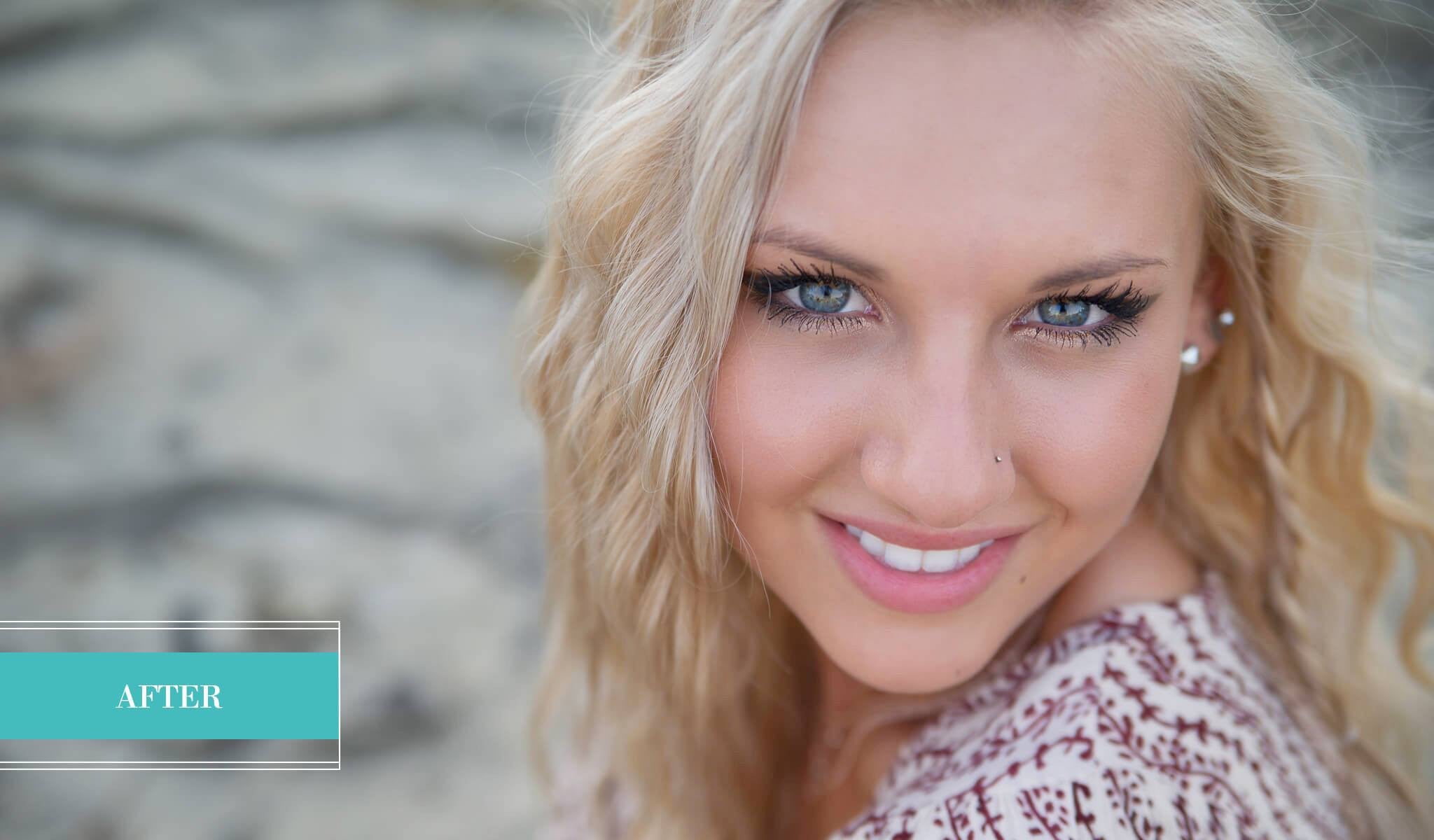
Portrait Brushes for Lightroom 4 - $15

*This product works with:

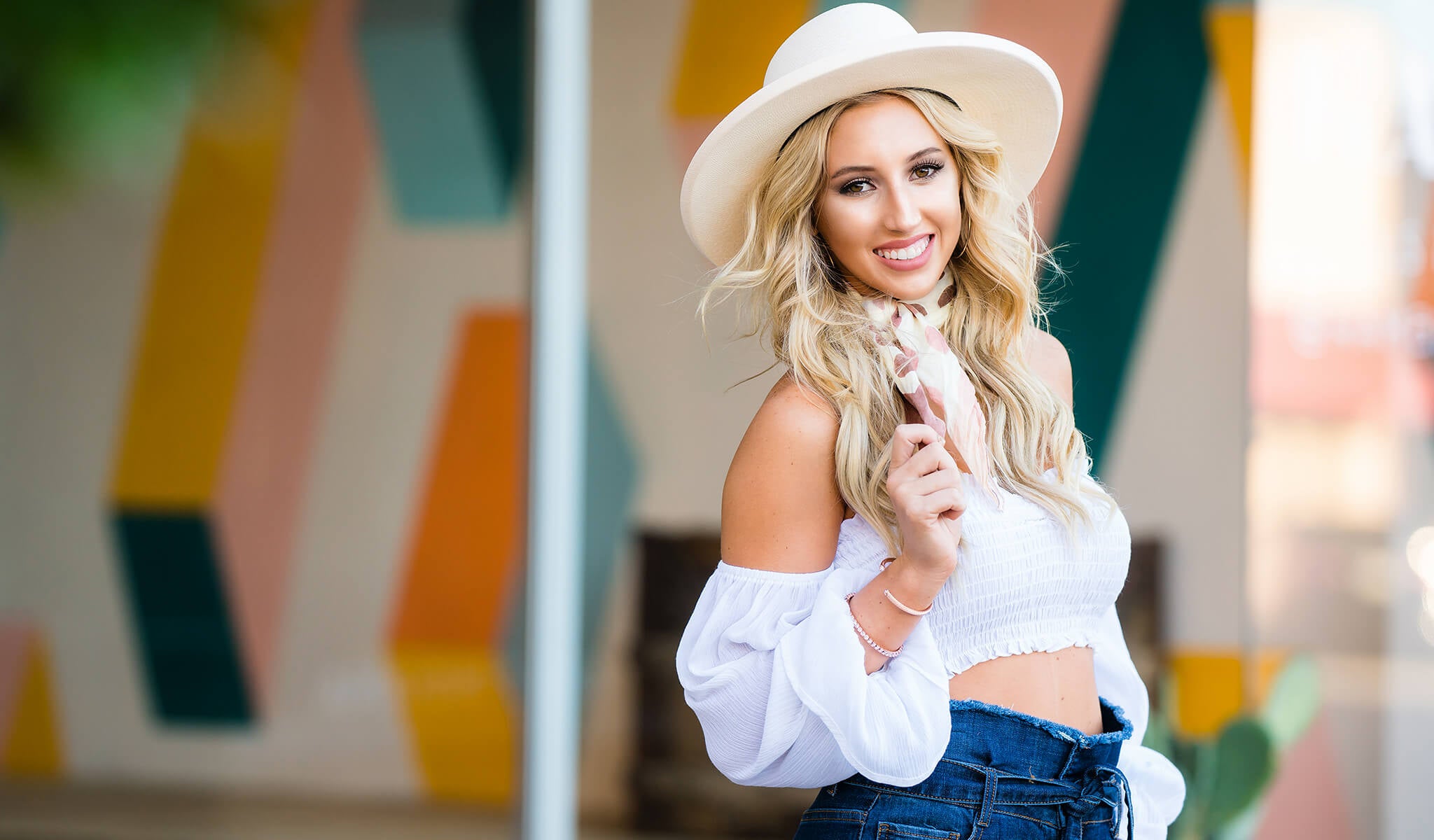
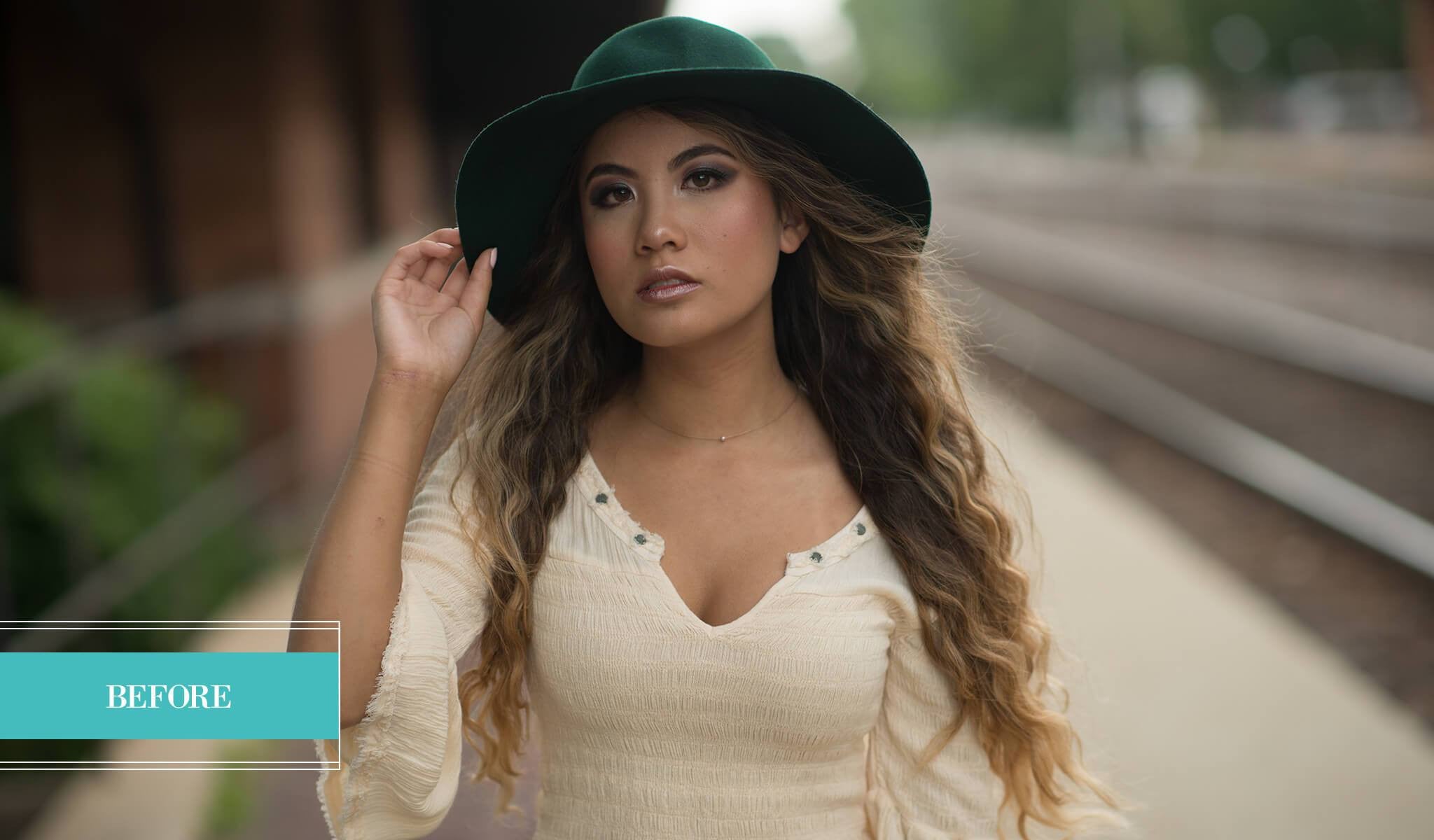
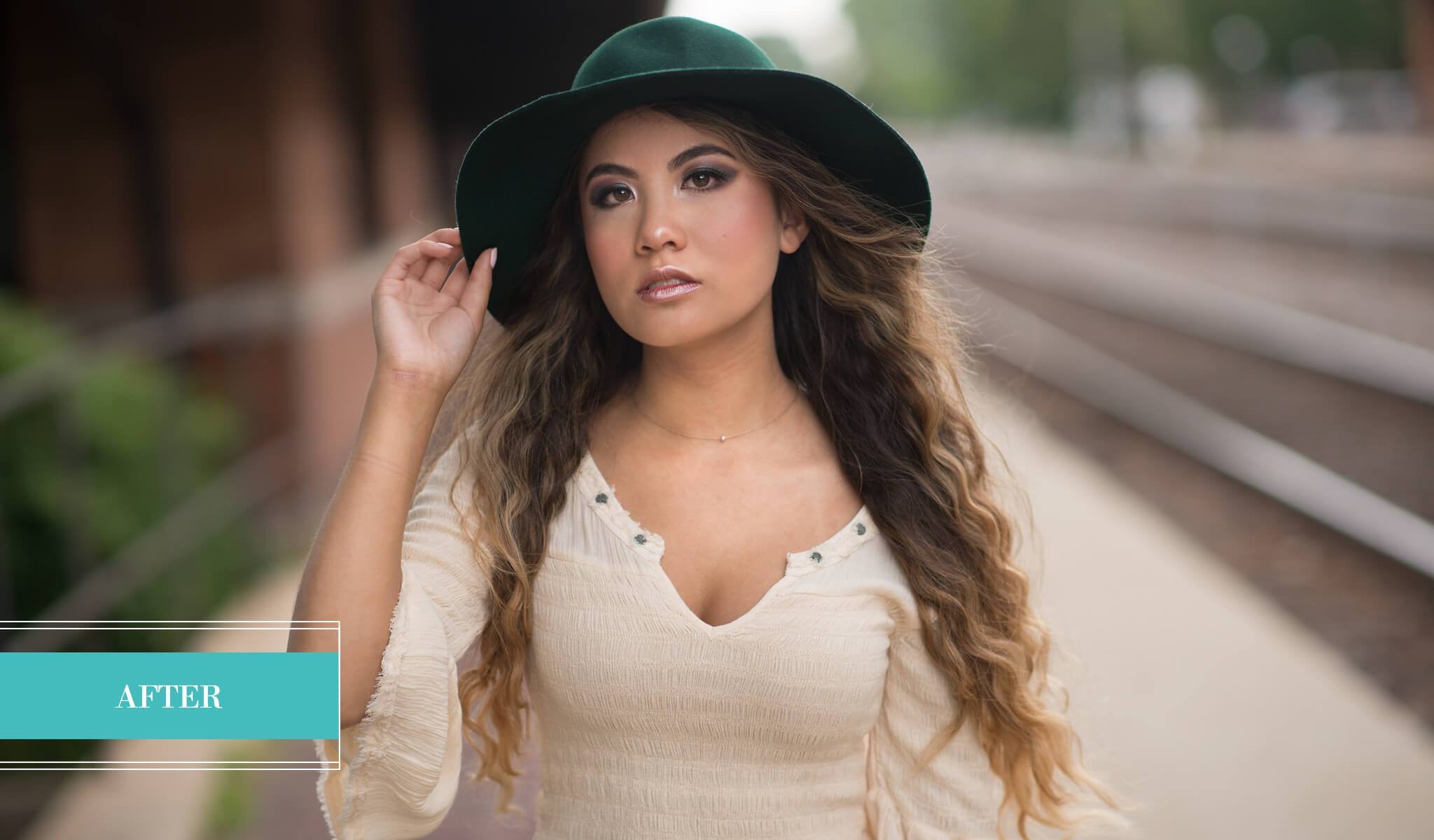
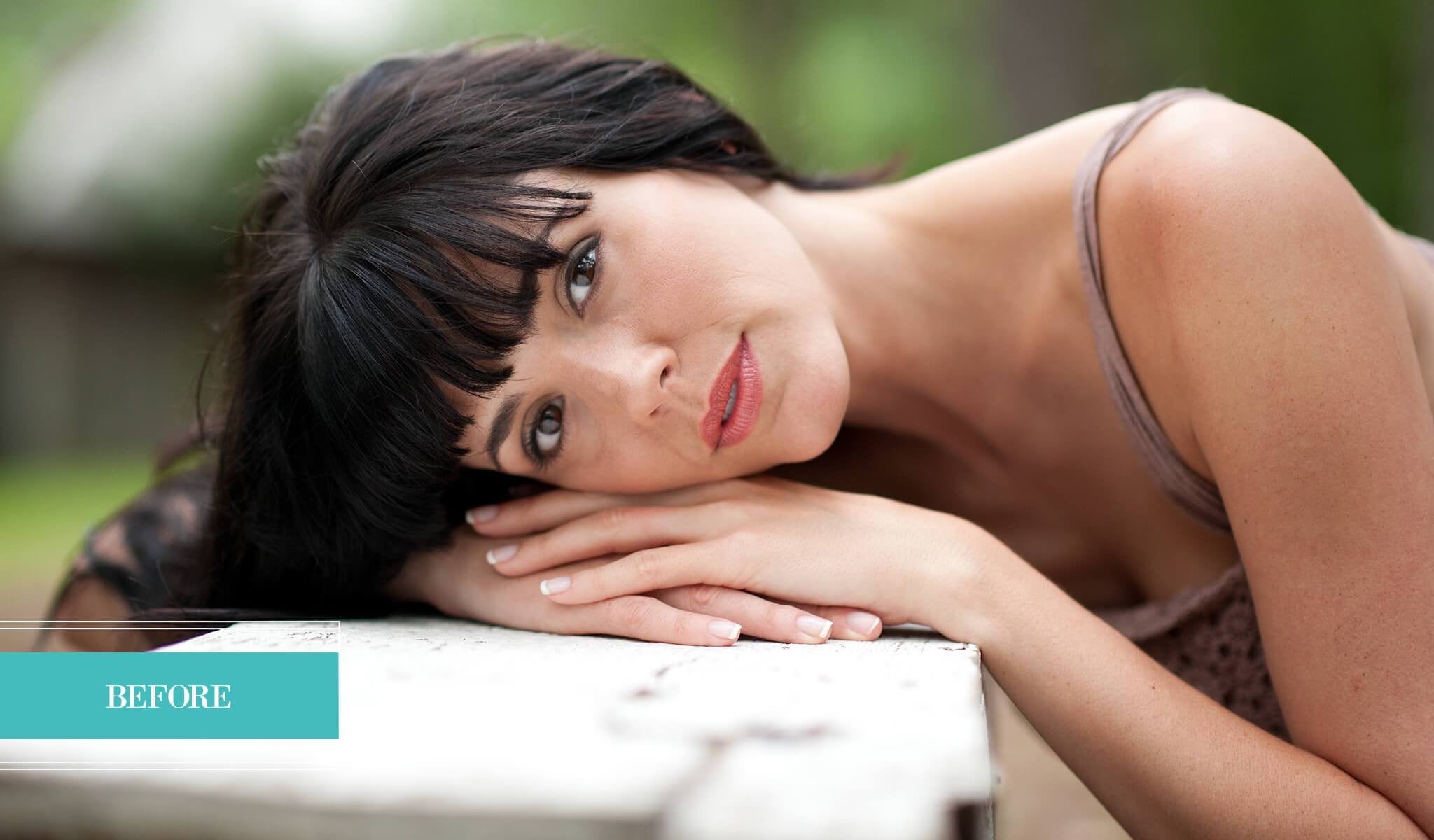
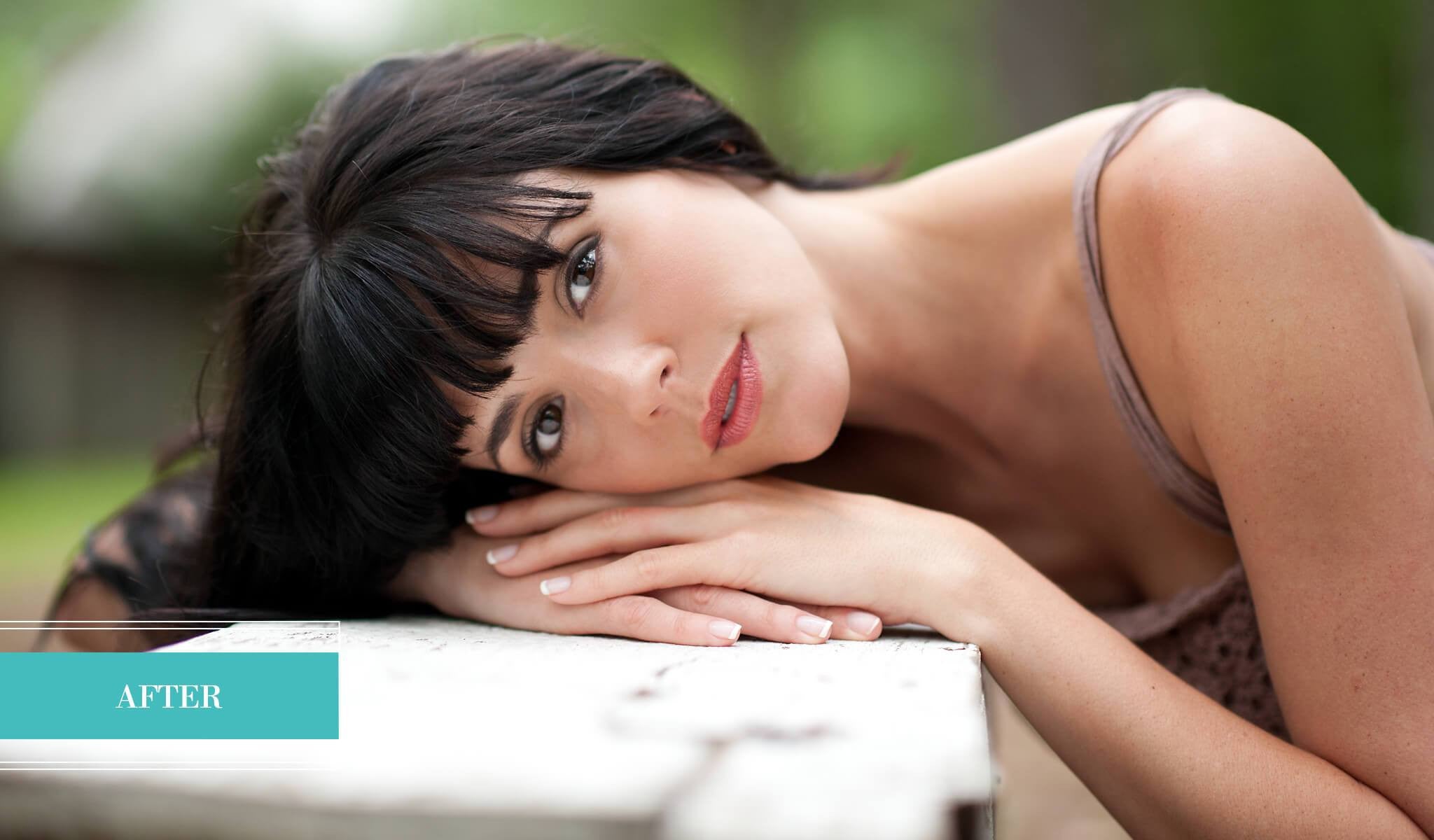
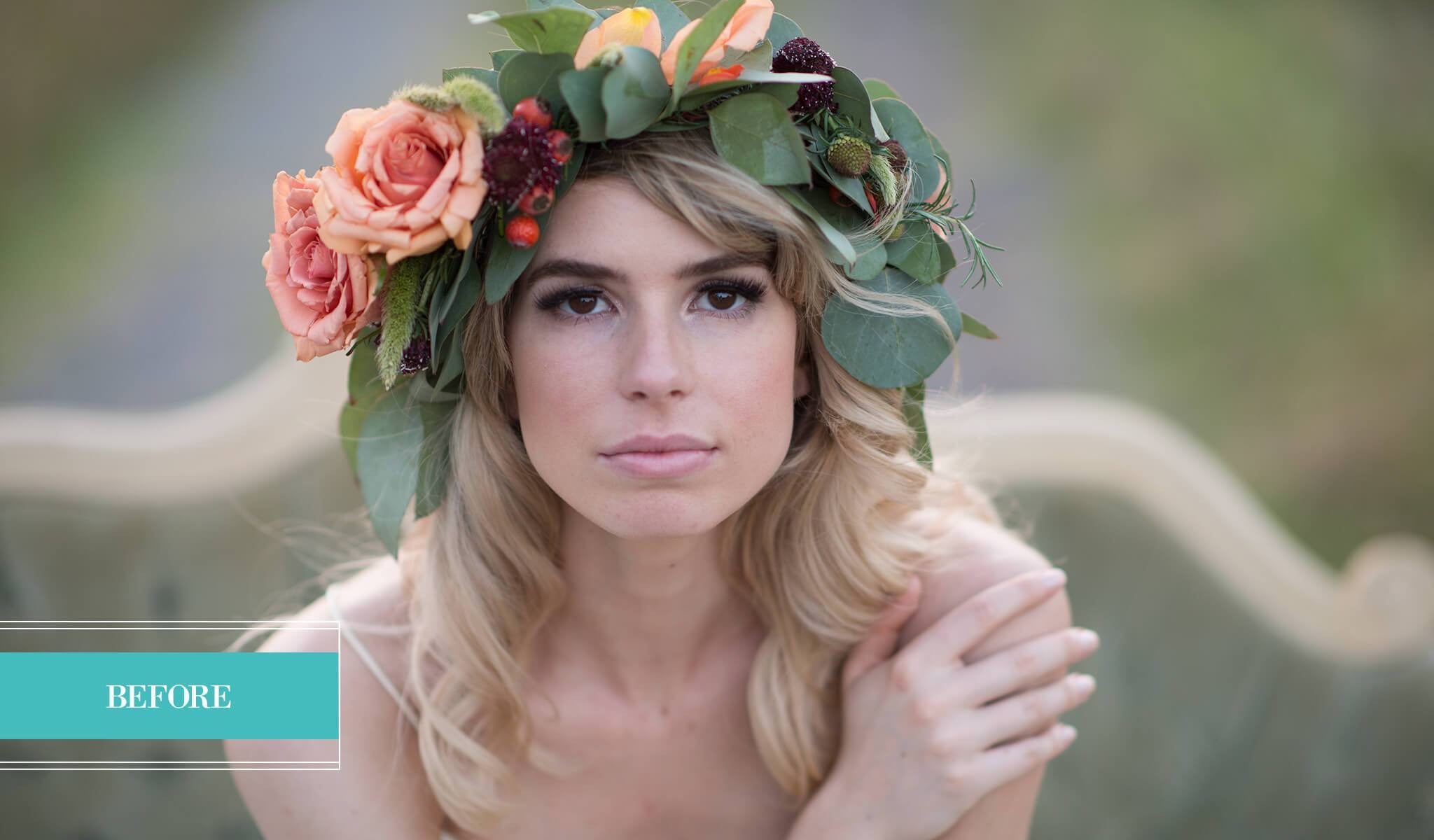
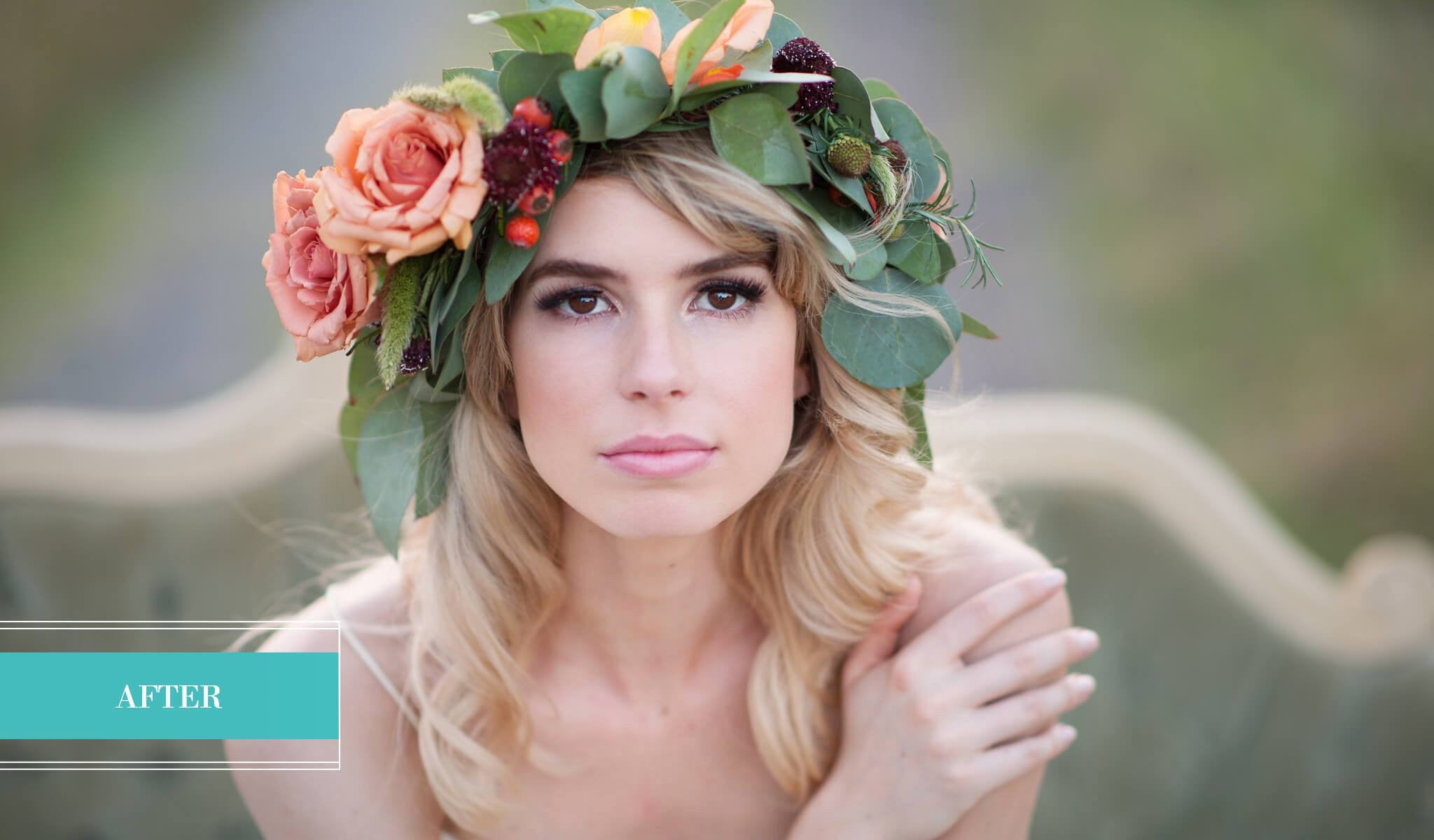
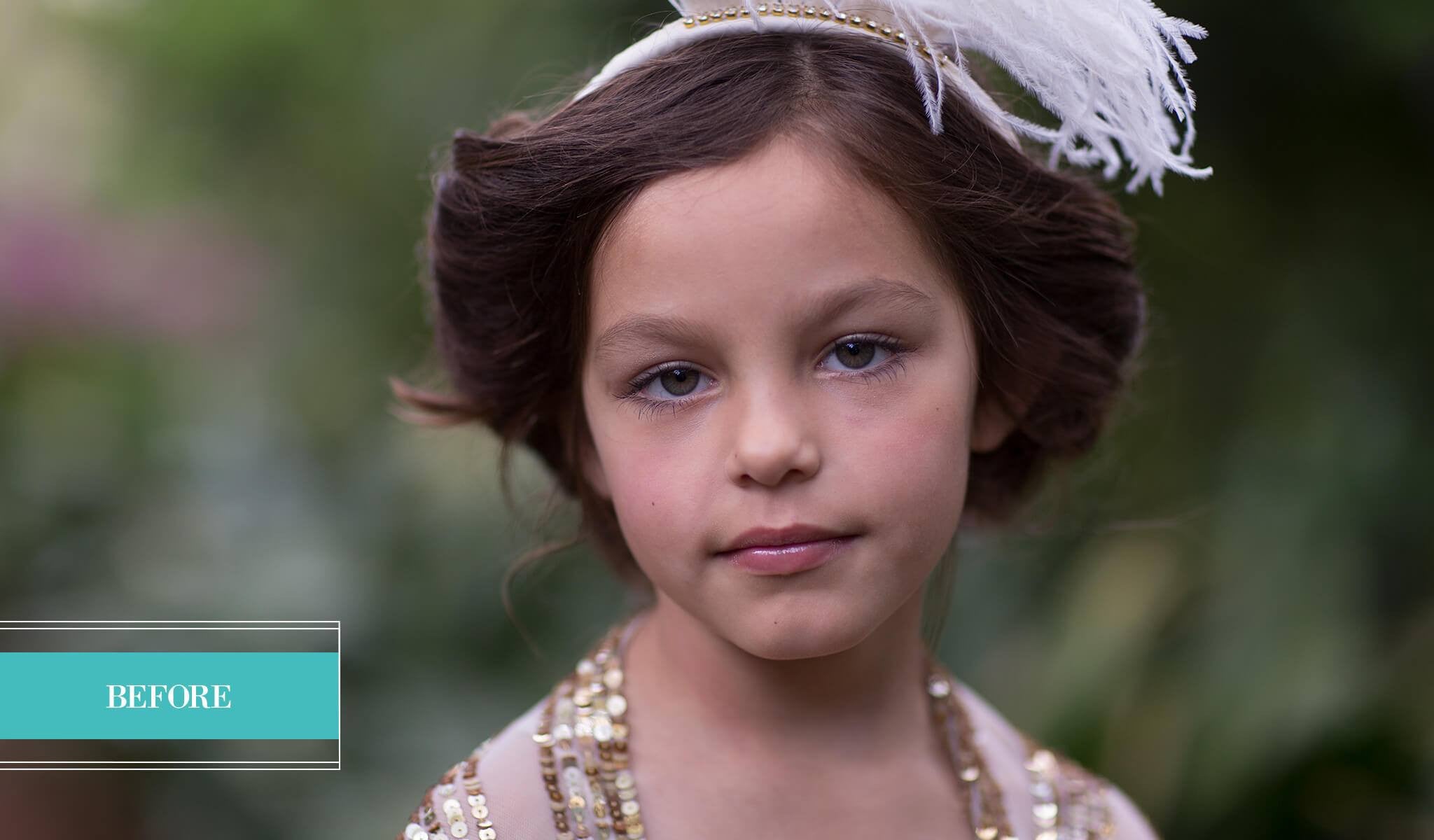
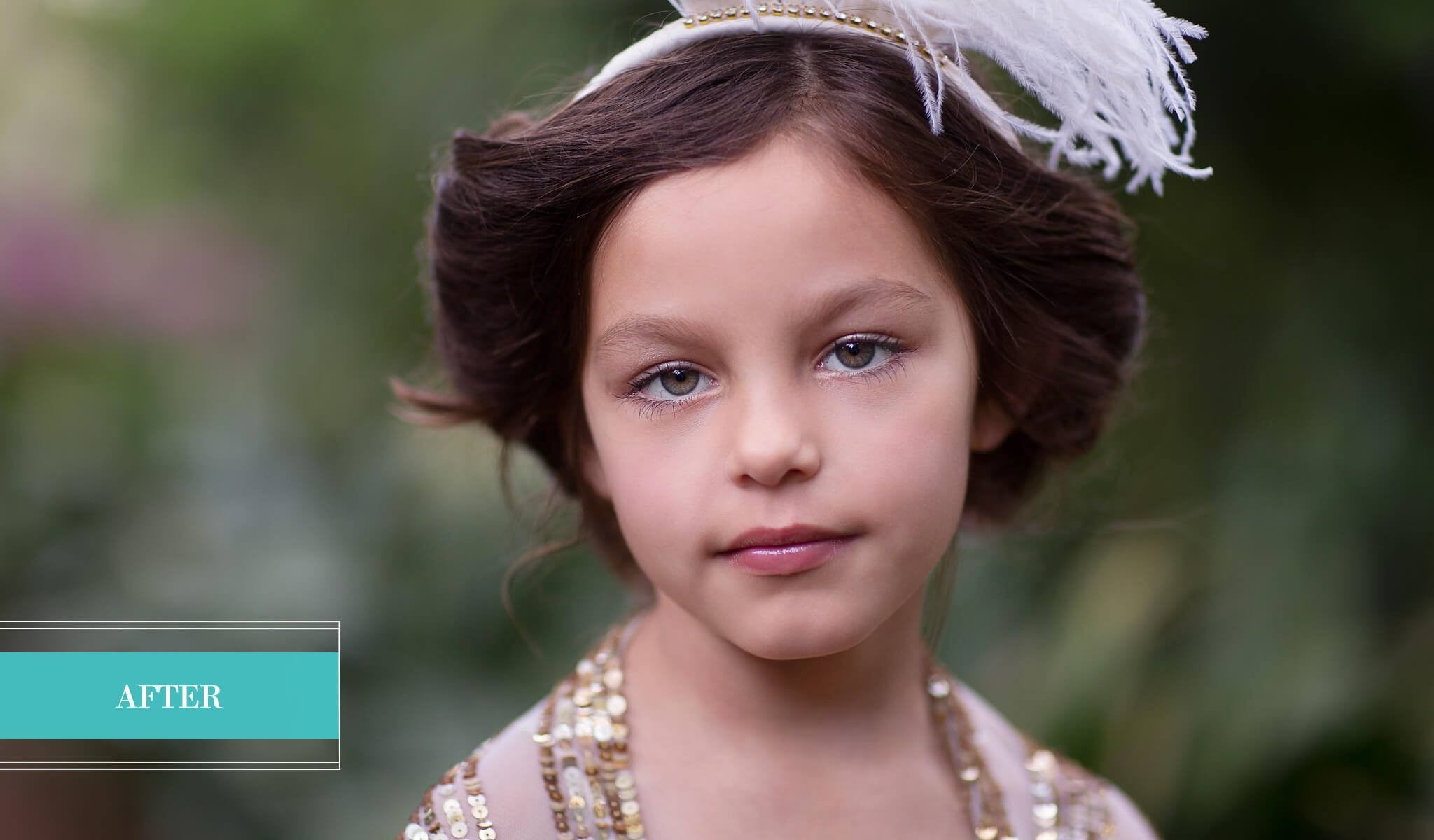
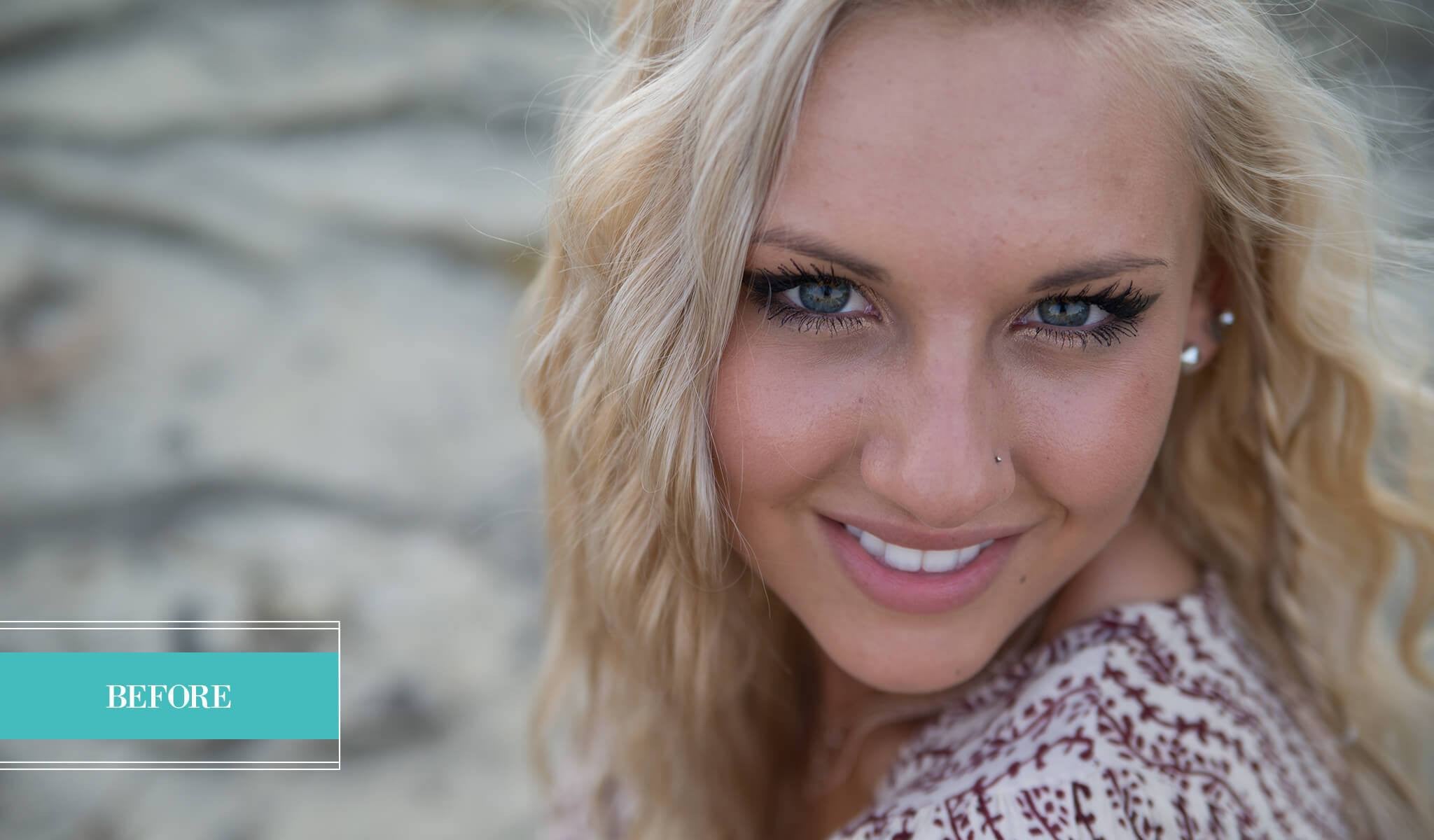
The Portrait Brushes include these 12 Filters + 5 Basic Brushes!  The 5 Basic brushes are Brighten, Darken, Light up Shadows, Simple Sharpen and Super Sharp. These brushes will work on jpeg and RAW images in Lightroom 4.  This is an instant download.

  1. Blush and Eye Shadow: Add a touch of color and darkness to cheeks and eyelids.
  2. Blue Eyes: Enhances the blue in blue eyes, plus adds brightness and sharpens.
  3. Brown Eyes: Enhances the brown in brown eyes, plus adds brightness and sharpens.
  4. Green Eyes: Enhances the green in green eyes, plus adds brightness and sharpens.
  5. Lashes n Liner: Define or darken the eye lashes, around iris or fill in eye brows.
  6. Eyes and Teeth Whiten: Whitens the whites of the eyes and teeth.
  7. Under-eye Circles: Lightens/reduces dark circles under the eyes.
  8. Lip Gloss: Enhances lips by adding a touch of color, darkening and smoothing.
  9. Red Cast Remedy: Helps reduce redness on cheeks, ears, neck or other areas.
  10. Cool Skin: Made to slightly cool the skin (use on skin that is too warm).
  11. Warm Skin: Made to slightly warm the skin (use on skin that is too cool).
  12. Smooth Skin: Smooth skin on face and neck.
How to Install Brush Presets in Lightroom 2, 3 and 4
  1. Click the link to download your preset packet (page will open up after purchase and/or you will be sent an email with a link to follow to download).
  2. Choose a location on your hard drive to SAVE the zip file. You need to be able to access the location again, so make sure you know the file path to the folder.
  3. After download is complete, go to the zip file (if your download window is open you can right click and choose 'open containing folder').
  4. Right click (or double click on a Mac) on the file and choose 'Extract All Files.' If this option does not open the file see "Possible Speed Bumps" below.
  5. Click INTO the folder that holds the set of brush/filter presets and highlight all of the .lrtemplate files and press 'control' and 'c' ('command' and 'c' on a Mac) to copy the files.
  6. Open your Lightroom program.
  7. PC users— go Edit in the top menu, then to Preferences. / Mac users - click on Lightroom word (top-left corner of screen), then to Preferences.
  8. In the Preferences menu, click on the Presets tab, then click on "Show Lightroom Presets Folder" button.
  9. When your Windows Explorer or Mac Finder opens up, double click on the Local Adjustment Presets folder.
  10. Press 'control' and 'v' ('command' and 'v' on a Mac) to paste in the preset files.
  11. Restart your Lightroom program and the brushes/filters will now show up when you go to those tools and click on the word that is to the RIGHT of the word Effect.

Watch a short video tutorial on how to install Pretty Preset's custom Lightroom brushes.

How do I install my brushes?

Brushes are installed almost exactly like presets except that they go into the “Local Adjustment Presets” folder instead of the “Develop” folder. You can get step-by-step instructions to installing brushes here. We also have videos to watch on this page as well.

How do I know if I shoot RAW or jpeg images?

We have a great tutorial about this here. It shares how RAW and jpeg are different and what they offer you. Most people are shooting jpeg unless they are going into their camera to manually select RAW. Read more here about Raw vs jpeg!

Do you suggest RAW presets on jpeg pictures? Or jpeg presets on RAW pictures?

While many Photographers do this, we recommend that you stick with the correct presets for the file type you are editing. This really just makes your job easier! If you do choose to purchase a RAW set for a jpeg picture then please know that there may be tweaking involved. This is done often enough that we’ve made a video about customizing your presets. You can view that video here.

Are all of your downloads instant? Do I receive anything in the mail?

Yes, all of our downloads are instant. As soon as you purchase the products they will be sent to your paypal email address. You can download them and start using them right away! There is no wait on any of our products. They will not come in the mail.

Terms of Use

You may only use these products for personal or professional use. This license extends to the single, individual purchaser. This license does not extend to companies or partner- ships and may not be resold, loaned, and/or gifted to another individual and/or party. You may not share, loan or redistribute/sell or copy any of these files in any way. All presets by Pretty Presets are copyright protected.

Products you may also enjoy